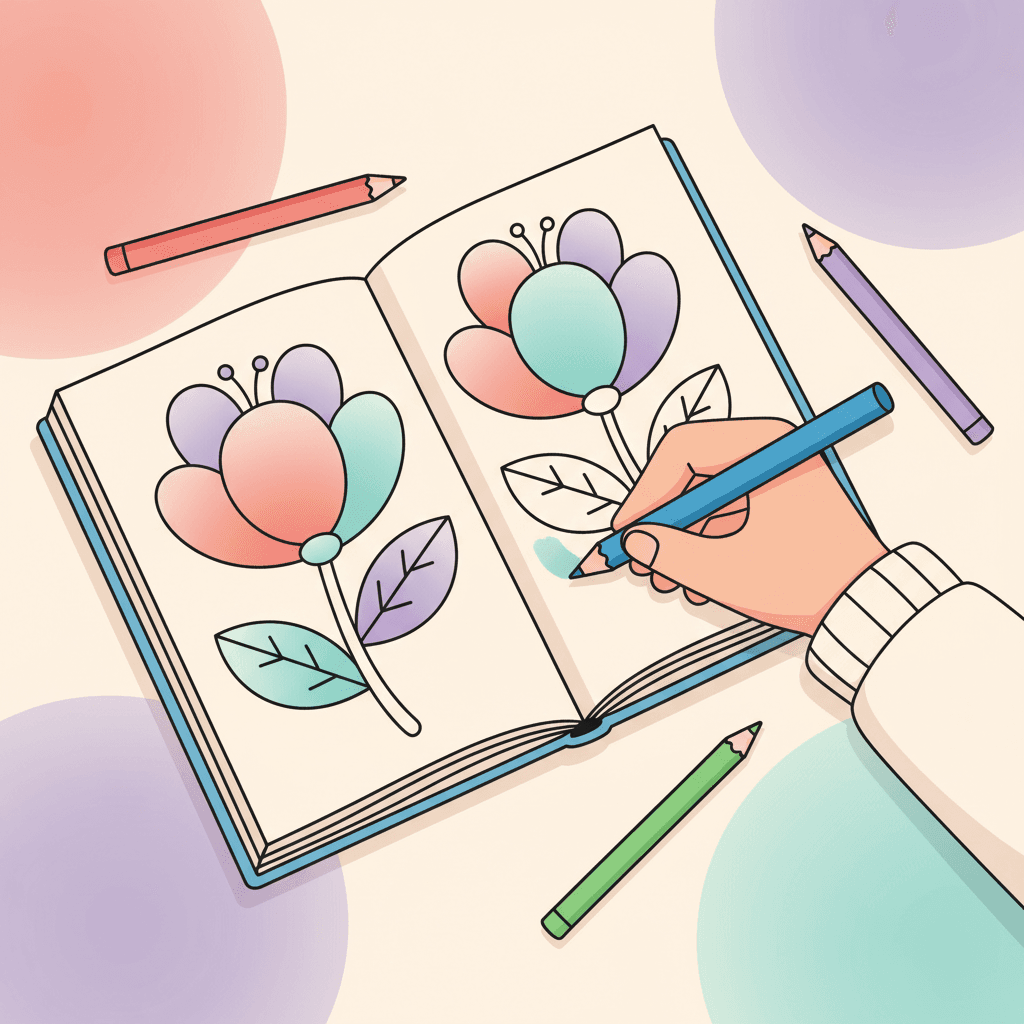
Finishing a coloring page feels good. Saving it should feel easy.
This guide shows three common flows:
- save progress and continue later
- download an image to share
- print the colored version or the original line art
Before you start: decide what you want to keep
Saving is easier when you know the goal.
Pick one:
- Keep working later: you need your progress saved.
- Share the finished picture: you need an exported image.
- Print for paper coloring: you need the original line art.
You can do all three, but you do not need to do them in one session.
Save progress for later
If you are coloring online, save early and save often.
Two ways to save:
- Auto-save: your device can store progress as you color.
- Save to file: download your progress so you can load it again later.
Save to file is the safest option if you switch devices or clear browser data.
When to use auto-save
Auto-save is convenient when:
- you are using the same device
- you expect to finish soon
- you want a smooth, no-click workflow
Auto-save can fail if browser data gets cleared or if you switch devices. If you care about keeping the work, also save to a file.
When to save to a file
Save to file is useful when:
- you want to move work between devices
- your kid wants to keep a project for a week
- you are using shared devices at school or a library
File saves also make stopping easier. Kids relax when they know the work is not gone.
How to load a saved file later
If you saved a file on your device, you can load it again and keep coloring.
Typical flow:
- open the same coloring page
- choose "Load from File"
- select your saved
.colorstatefile
If you switch devices, move the file with email, cloud storage, or a USB drive.
If loading fails
Most loading issues come from one of these:
- the file is from a different page than the one you opened
- the file did not finish downloading
- the browser blocked the file picker
Try opening the same page again, then load the file once more. If you are on a shared computer, saving to a file is still safer than relying on auto-save.
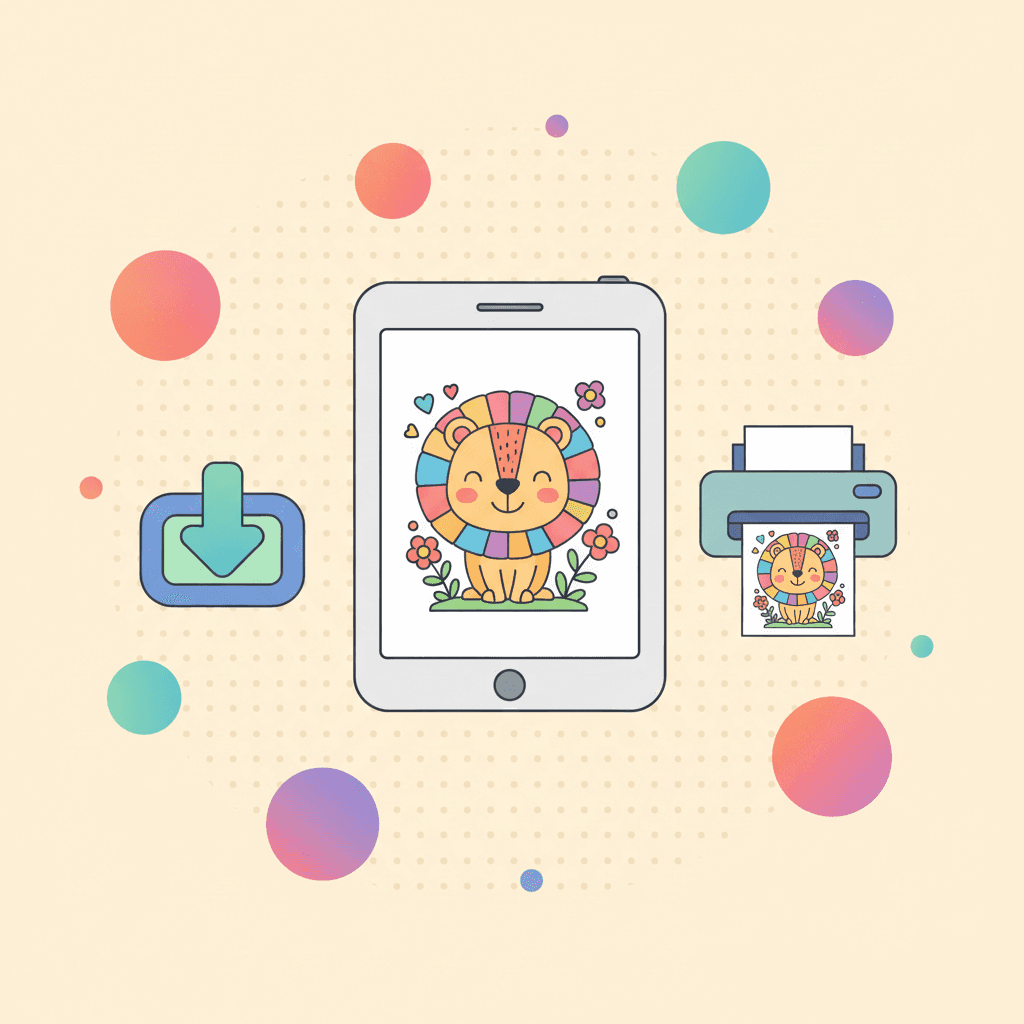
Download a finished image
When you are done, export a PNG so you can:
- text it to family
- upload it to a classroom slideshow
- keep a digital folder of finished work
If you want a clean image for sharing, zoom out and check the whole page before exporting.
Organize finished images so you can find them later
You do not need a complicated system. One folder is enough.
Try this naming pattern:
kidname-theme-date.png
If you share with a classroom or group, use first names only. If you save progress files too, keep them in the same folder so you can find them later.
Share finished pages without sharing personal info
Kids' art is fun to share, but keep it simple:
- avoid full names in filenames
- do not include school names in captions
- crop out any visible personal details if you took a photo of a printed page
Print the colored version
Printing a finished page works well for:
- fridge art
- classroom displays
- gifts for grandparents
Before you print, check your printer settings:
- normal quality (not draft)
- color enabled
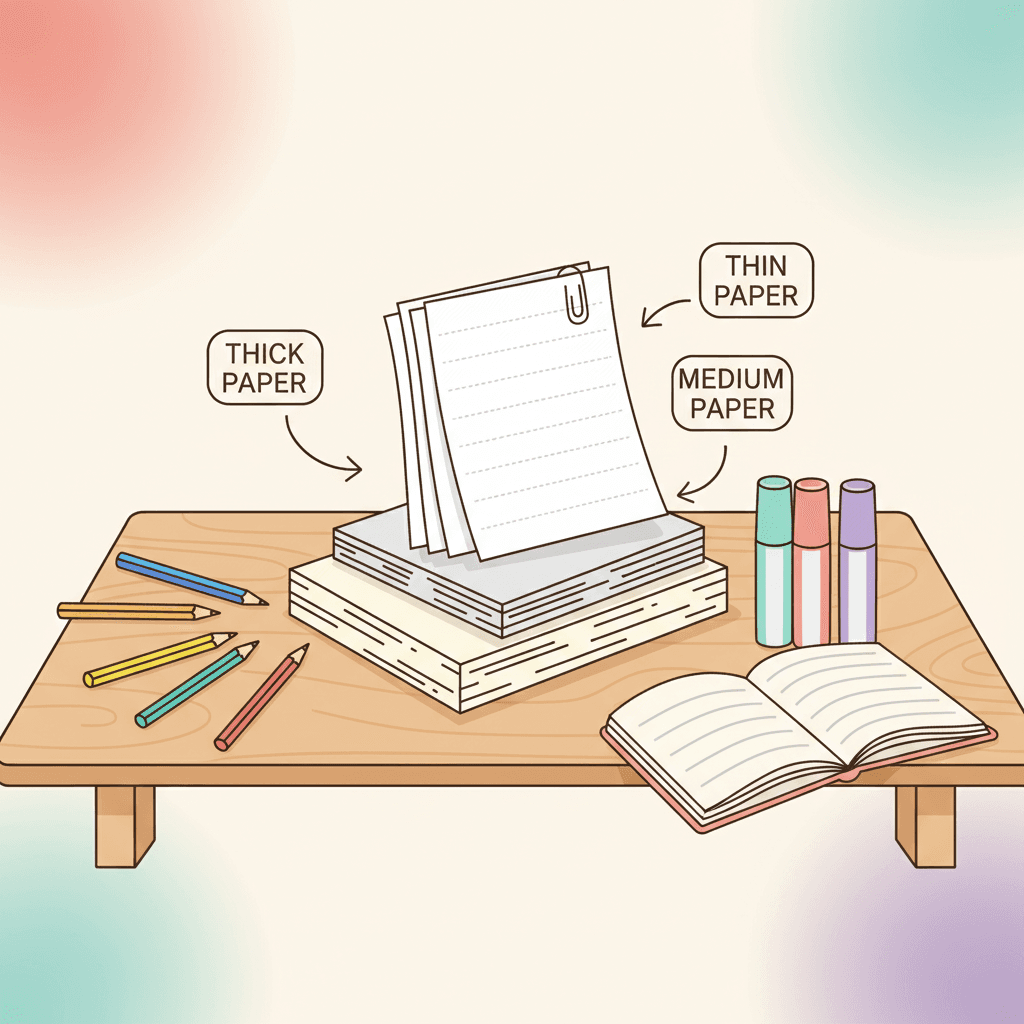
Paper tip:
- crayons look best on standard paper
- markers look better on thicker paper so they do not bleed through
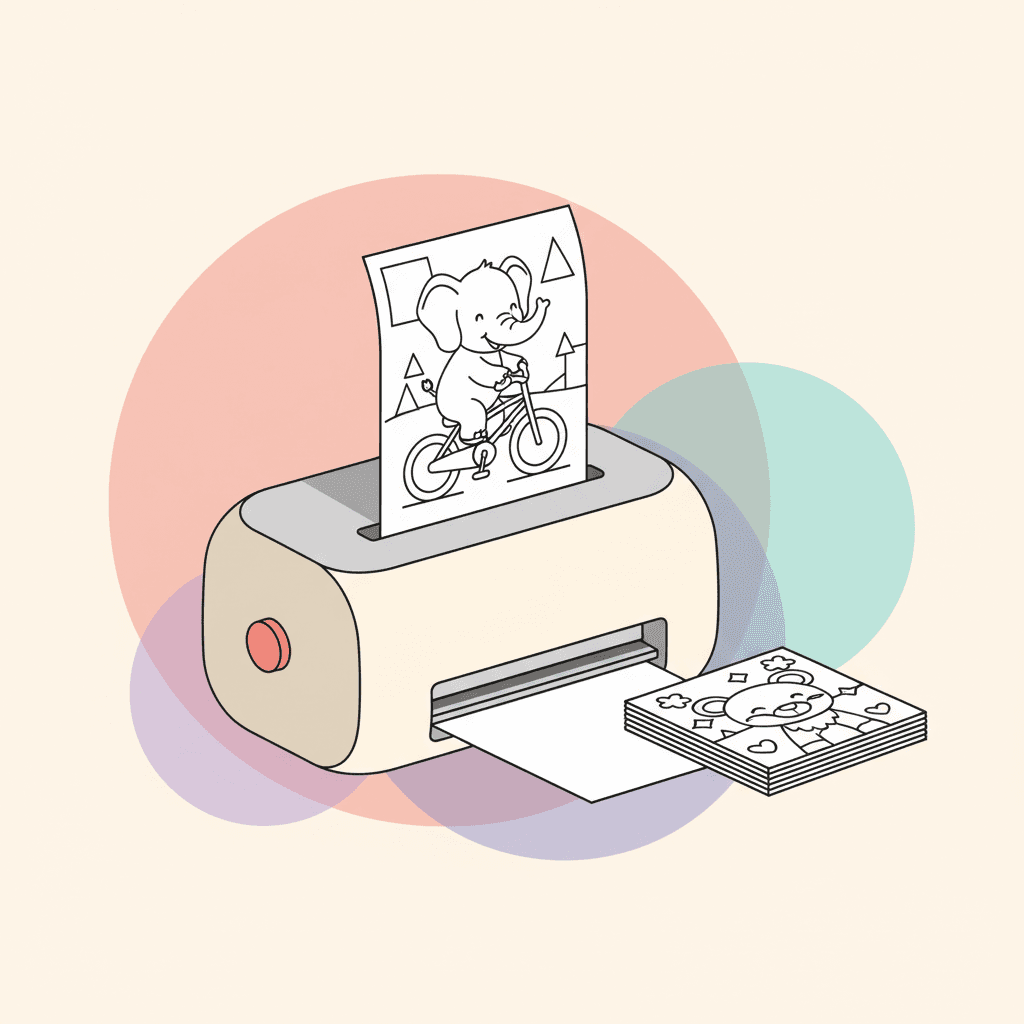
Print the original line art
Sometimes you want the same page again, but on paper. Printing the original line art gives you a clean black-and-white version.
That is useful for:
- siblings who want the same page
- classroom packets
- travel folders
If you are printing for a group, print a small batch once. Printing one page at a time usually creates bottlenecks.
Common issues and fast fixes
If exports look blurry:
- zoom out before exporting
- try the higher-resolution export option
If printing cuts off the edges:
- print at 100% scale
- disable "fit to page" cropping if it trims the border
If the lines look too light:
- turn off draft mode
- increase print contrast if your printer supports it
- try a different paper type setting
If your page prints with odd borders:
- check margin settings
- avoid auto-cropping options
Pick a page to test the flow
Try one page from a category you like:
Then save progress, export a PNG, and print once so you know the flow works on your device.
If you want more ways to use saved pages, these guides pair well: