Back to blog

How to print coloring pages

Print coloring pages the right way: avoid blurry lines, fix sizing and cropping, choose paper for pencils vs markers, and troubleshoot common printer problems.

16 min readBy Coloring Dojo Team
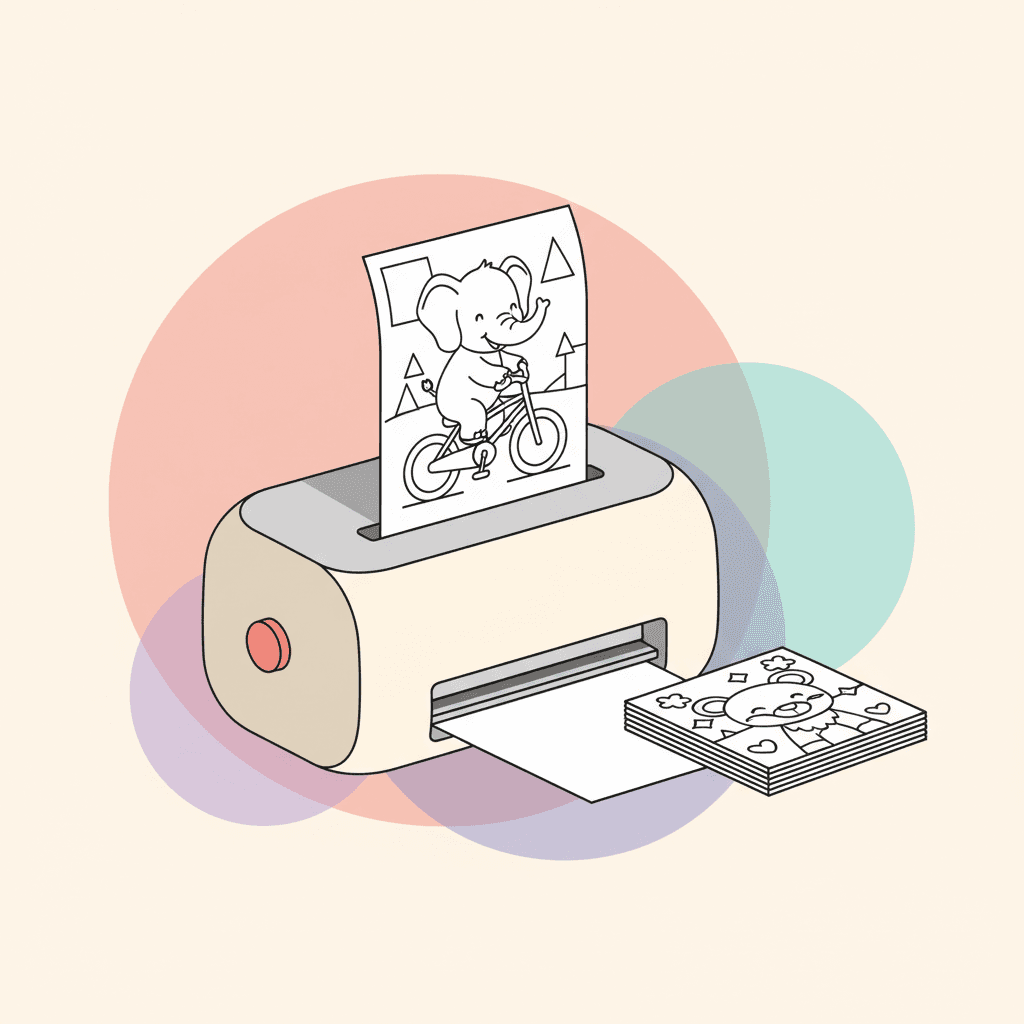
A printed coloring page coming out of a home printer with crisp black lines on white paper.

TL;DR: Print from a PDF if you can. Set scaling to "Fit to page," quality to Normal or High, and color to Grayscale. Match your paper size setting to whatever's in the tray. Print one test page, dial in the settings, save them as a preset. Done.


I wasted an embarrassing amount of paper figuring this out. The first time I tried printing coloring pages at home, half the design got cut off on the right side. I fixed that and the lines came out so faint you could barely see them. Fixed that and the ink smeared the second my daughter touched it with a marker. Three problems, three separate settings, and none of them were obvious.

Now I have a preset saved on our HP that just works every time. It took maybe 20 minutes of testing to get right, and I haven't thought about print settings since. This guide is everything I learned in those 20 minutes, plus the stuff I figured out later about paper, printers, and printing from phones.

The settings that fix most problems

Six settings matter. Everything else you can leave at the default.

Print from a PDF when you can. PDFs hold their sizing and sharpness better than image files. If you only have a PNG or JPG, that's fine too, but PDFs behave more predictably when you scale them.

Scaling: Fit to page. This is the one that fixes the cut-off-edges problem. "Fit to page" (sometimes called "Shrink to fit" or "Scale to fit") makes sure the entire design fits within your paper margins. Don't use "Fill page" or "Borderless" unless you've tested it first, because those modes zoom in slightly and chop the edges.

If you need the exact intended size (for fold-and-cut projects or classroom activities with measurements), use "Actual size" or 100% instead. But for regular coloring pages, Fit to page is the safe bet.

Paper size: match what's in the tray. Letter in the US, A4 almost everywhere else. If these don't match, your printer will either scale weirdly or leave half the page blank. I had a month where every print came out with a huge white strip on one side. Turned out the setting was on A4 but we had Letter paper loaded. Felt dumb.

Quality: Normal or High. Never use Draft or Econo mode for coloring pages. The lines come out faint and broken, like someone printed with a dying pen. If your lines still look too light on Normal, bump to High. The difference in ink usage is tiny.

Color mode: Grayscale or Black & White. For line art coloring pages, there's no reason to use color ink. Grayscale gives you cleaner blacks and saves your color cartridges. Some printer drivers produce a slightly richer black line in grayscale mode than in color mode anyway.

Turn off image enhancements. If your printer has anything called "Enhance edges," "Photo smoothing," "Vivid mode," or "Image optimization," turn it off. These are designed for photographs and they thicken or blur line art. I spent a while trying to figure out why my prints looked fuzzy before I found an "Edge enhancement" checkbox buried in the advanced settings of our Canon driver. Unchecked it, problem solved.

One more thing: make sure duplex (two-sided) printing is off. If you're using markers or gel pens, you don't want ink or pressure marks showing through to the other side.

Before you hit print

File type matters

PDFs are best because they keep sizing consistent and lines sharp. PNGs are good too since they're lossless, meaning the lines stay crisp. JPGs can introduce compression artifacts that make lines look slightly hairy or fuzzy, especially if the file has been saved and resaved a few times. If you downloaded a JPG and the lines look rough when you zoom in on your screen, printing won't fix that.

Check the resolution

If lines look jagged or pixelated on screen at full zoom, they'll print that way too. For a full-page print on Letter or A4, you want at least 1500 pixels on the long edge. 2500+ is better. A 1024x1024 image can still print but it'll look softer, especially fine details.

The background should be white

Coloring pages print best when the background is pure white and the lines are solid black or dark gray. Watch out for images with a transparency checkerboard pattern (the gray and white squares you see in some image editors). Some printers handle transparency fine. Others print the checkerboard as actual gray squares.

If you're printing from a website, download the file first rather than printing directly from the browser. Browser printing adds its own URL, date, and page number at the top and bottom of the page. If you must print from the browser, uncheck "Headers and footers" in the print dialog. I learned this one after printing a stack of 15 pages for my daughter's birthday party, every single one with "https://..." printed across the top in tiny text.

Printing from your specific device

Windows 10 and 11

Open the PDF in Edge, Adobe Reader, or whatever PDF viewer you use. Hit Ctrl+P. Set your paper size (Letter or A4), set scaling to Fit to page, then click into the printer properties or preferences to set Grayscale and Quality. The exact location of these settings varies by printer brand, which is annoying, but it's usually under a "Quality" or "Color" tab.

For image files (PNG or JPG), right-click the file, choose Print, and use the Windows print dialog. Check the preview to make sure the whole image shows and the orientation is right. If the image looks zoomed in or cropped in the preview, switch the scaling.

Mac

Open the file in Preview (it handles both PDFs and images). Go to File, then Print, or use Command+P. Set your paper size and orientation. Click "Show Details" at the bottom to get to the scaling options. In the printer-specific settings, look for Black & White and set quality to Normal or Best.

Preview on Mac also lets you do quick edits before printing. You can bump the contrast if lines are too light, or rotate the page if it's oriented wrong.

iPhone and iPad

Open the PDF or image, tap the Share button (the square with the arrow), then tap Print. The AirPrint dialog is limited but it works. Pinch-to-zoom on the preview to check sizing. If the preview looks zoomed in, pinch outward until you see the full page with margins. Choose your paper size if the option is there, then print.

If the AirPrint controls feel too limited, download your printer's app. HP Smart, Epson iPrint, and Canon PRINT all give you more control over quality, paper type, and color settings than AirPrint does.

Android

Open the file, hit the three-dot menu or Share, then Print. Select your printer (needs to be on the same Wi-Fi network), set paper size, and toggle Color to Black & White if you can. Android's print interface varies a lot between phones and Android versions, but the basics are always there.

Chromebook

Chromebooks handle PDFs well but can be finicky with some printers, especially on school-managed networks where the IT department controls print access. Open the PDF from the Files app, hit Ctrl+P, set paper size and "Fit to printable area" for scaling. If your printer doesn't show up, you might need to add it through Settings > Advanced > Printing.

For schools using managed Chromebooks: check with your IT department about which printers are available. Some school networks route everything through a cloud print service.

Laser vs inkjet: which matters for coloring pages

This was the biggest "aha" for me. We have an inkjet at home (HP Envy) and I kept getting smeared lines when my kids used markers on the prints. The inkjet ink is water-based. The markers are water-based. The marker reactivated the printed ink and the lines turned into gray smudges.

Laser printers fuse dry toner onto the paper with heat. Once it's on, it's on. You can color over it immediately with anything, markers, pencils, gel pens, crayons, whatever. The toner doesn't reactivate. Lines come out sharper too. If you have access to a laser printer at work, the library, or anywhere else, use it for coloring pages. The print quality difference is noticeable.

Inkjet printers spray wet ink into the paper. It works fine for colored pencils and crayons since those don't dissolve the ink. But water-based markers (Crayola Supertips, Tombows) will smear inkjet lines because they share the same water-based chemistry. Even Crayola washable markers can do it.

If you only have an inkjet and want to use markers, let the prints dry for at least a full day before coloring. Seriously, 24 hours minimum. The ink needs to fully cure into the paper fibers. You can speed this up with a blow dryer on low heat, but I'd still let them sit overnight to be safe. And always test one corner with your marker before committing to the page.

Here's a detail I picked up from a coloring forum: colored pencils can sometimes smudge inkjet prints too, because the wax in the pencil leads can lift the ink if you press hard. I've only had this happen with really heavy burnishing, but it's worth knowing.

One more thing about inkjet: if you're using alcohol markers (Copics, Ohuhu alcohol sets), those will definitely dissolve inkjet ink. But weirdly, they work fine on laser prints because the alcohol can't dissolve fused toner. More on this in our marker bleed-through guide.

Paper: match it to what you're coloring with

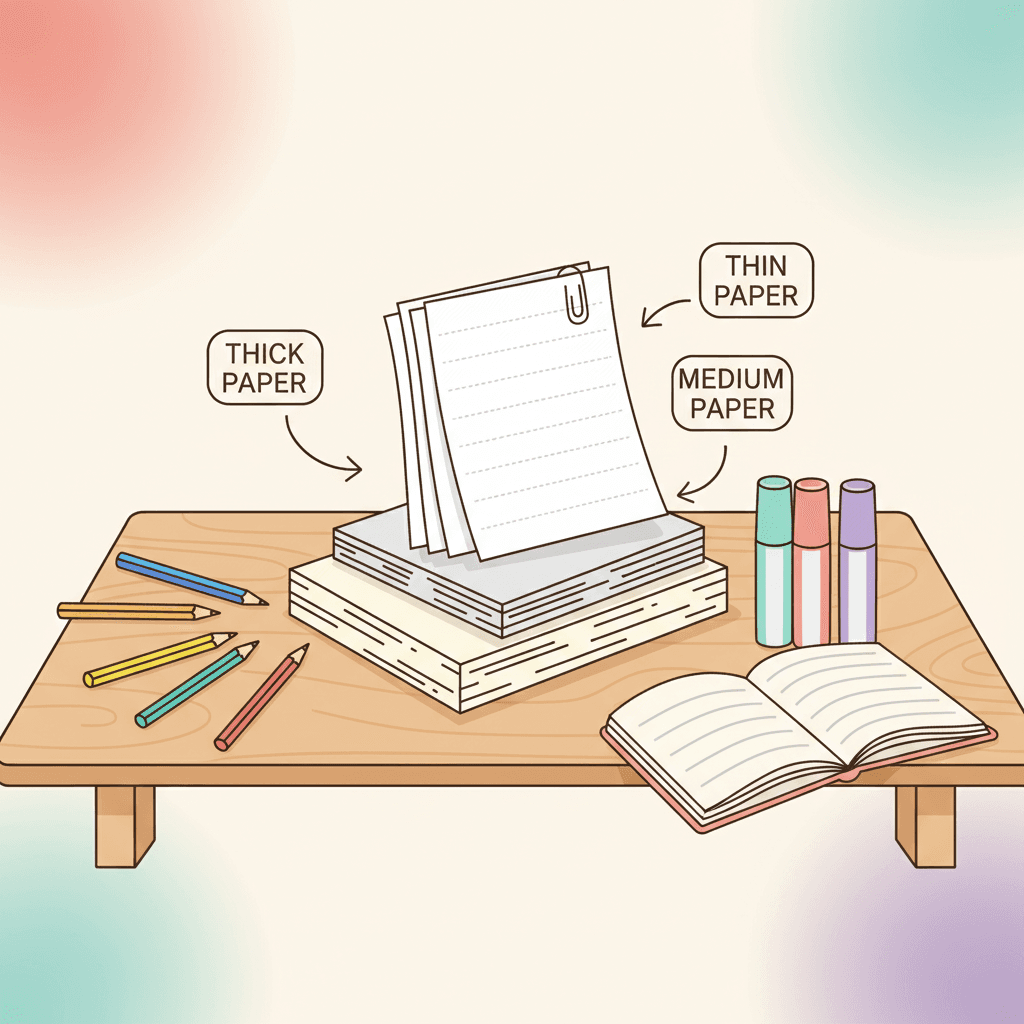
The paper you load in the tray makes more difference than the printer settings, honestly. I've printed the same page on cheap 20 lb copy paper and 65 lb cardstock and they feel like completely different experiences to color on.

Crayons and basic colored pencils: regular 20 to 24 lb printer paper is fine. No need to overthink it. This is the stuff that's already in your printer.

Serious colored pencil work (layering, blending, shading): 28 to 32 lb premium paper gives you more tooth for the pencil to grip and handles more layers before the surface starts pilling. I switched to 32 lb HP Premium and the difference in how many layers I could build was immediately obvious. See how to shade with colored pencils for why this matters.

Gel pens: thicker paper prevents the ink from showing through. 28 to 32 lb handles most gel pens. If you press hard, go to 65 lb cardstock.

Water-based markers: 32 lb paper or heavier. You'll still get some bleed on heavy saturation but it's much better than 20 lb. Always use a blotter sheet behind the page.

Alcohol markers: these will bleed through almost any normal printer paper. You need marker paper or at least 65 lb smooth cardstock, printed single-sided with a blotter sheet behind it. Our marker bleed-through guide goes deep on this.

For specific paper brands, weights, and printer compatibility, see best paper for printing coloring pages.

Feeding heavier paper

Most home printers handle up to about 65 lb cardstock (roughly 176 GSM) through the regular tray without issues. For heavier stock:

Use the rear feed tray or manual feed if your printer has one. The paper path is straighter so it doesn't have to bend around a tight corner, which is what causes jams. Feed one sheet at a time. And change the paper type setting in your printer to "Cardstock" or "Thick paper" so it adjusts the roller pressure. If a sheet catches or skews, stop immediately and pull it out. Don't force it.

Printing without a home printer

You don't need a printer at home. Several options:

Your local library almost always has printers, and many don't charge for black-and-white prints (or charge a few cents per page). Library printers are usually laser, which means great line quality and no marker smearing. I've printed entire coloring packs at our library for free.

Office supply stores (Staples, Office Depot, FedEx Office, UPS Store) do on-demand printing. You can upload a PDF to their website or bring a USB drive. They can also print on heavier paper that your home printer might not handle. If you want cardstock prints, this is a solid option.

Giant poster-size prints for parties or classroom walls: ask for "engineering prints" or "blueprint prints" at Staples or FedEx Office. These are big black-and-white prints on thin paper and they're surprisingly cheap, usually under $5 for a 24x36 inch print and under $8 for a 36x48. The paper is thin but the size is fun. Tape a few together and you've got a wall-sized coloring mural. We did this for a birthday party and the kids loved it.

CVS and Walgreens can print photos from their kiosks, but the quality for line art isn't great. Stick with office supply stores or the library for coloring pages.

Printing multiple pages per sheet

If you want smaller coloring pages (for card-making, miniature coloring books, or just fitting more on a page), use the "Pages per sheet" option in your print dialog. Set it to 2 or 4 to fit multiple copies on one sheet.

On Windows, this is usually under "Layout" or "Finishing" in the printer properties. On Mac, it's in the "Layout" section of the print dialog. You can also use a tool like Adobe Reader's "Multiple" poster option or just arrange the images in a word processor.

We print 4-up versions of simpler designs for road trips. Gives the kids more variety without burning through paper.

Lock in your settings with a test run

Before you print a whole stack, spend five minutes dialing things in:

Print the same page three times on your cheapest paper. First one with Normal quality and Fit to page. Second one with High quality and Fit to page. Third one with Normal quality and Actual size. Compare them side by side. Which one has the crispest lines? Is everything fitting on the page? Any cropping?

Pick the winner and save those settings as a preset in your printer driver. Most Windows and Mac printer dialogs let you save a named preset. I called mine "coloring pages" and now I just select it from the dropdown. Haven't adjusted a setting since.

Troubleshooting

"The edges get cut off"

You're probably in "Fill page" or "Borderless" mode, which zooms in slightly to eliminate margins, cutting off the edges of the design. Switch to "Fit to page" (not "Fill") and turn off borderless printing. Also double-check that your paper size setting matches the paper in the tray. Letter vs A4 mismatch causes all kinds of weird cropping.

"The lines are blurry or fuzzy"

Three possible causes. First: your source file is low resolution. Zoom in on the image on screen. If it's blurry there, it'll be blurry on paper. You need a higher-res file. Second: you have some kind of photo enhancement or edge smoothing turned on in your printer settings. These are designed for photos and they blur line art. Turn them off. Third: you're printing in Draft or Econo mode. Switch to Normal or High.

"The lines are too faint"

Bump quality from Draft/Normal to High. Switch to Grayscale mode (some printers produce a richer black in grayscale than in color). If it's still faint, your source file might have light gray lines instead of black. Open it in any image editor (even the Photos app on your phone) and bump the contrast up. That darkens the lines without thickening them.

"Ink smears when I color over it"

Classic inkjet problem with water-based markers. Let prints dry at least 24 hours. Or use a laser printer, which doesn't have this issue at all. If neither is an option, test a corner with your marker first, and stick to colored pencils or crayons for fresh inkjet prints. See our marker bleed-through guide for more on this.

"It prints sideways"

Set orientation manually to Portrait (or Landscape if the design is wider than it is tall). Some print dialogs auto-detect orientation, but they get it wrong sometimes, especially with square images.

"The printer keeps jamming on thick paper"

Don't stack cardstock in the main tray. Use the rear feed or manual feed slot, one sheet at a time. Make sure you've changed the paper type setting to "Cardstock" or "Thick paper" so the rollers adjust. And check your printer's spec sheet for the maximum paper weight it can handle. Most home inkjets top out around 200 GSM.

"There's a URL and date printed across the top"

You printed from a web browser without unchecking "Headers and footers." In Chrome, Edge, and Firefox, open the print dialog (Ctrl+P) and look for "More settings" or "Options." Uncheck the headers and footers toggle. Or better yet, download the file first and print from a PDF viewer instead of the browser.

"The page is curling after printing"

Humidity or heat from the printer. Lay the page flat under a heavy book for a few hours. If it keeps happening, your paper might be absorbing moisture from the air. Store paper in its original wrapping until you need it, especially in humid months.

Watch: printing coloring pages

More printing tips:

Further reading

FAQ

Should I print in color or black and white?

For line art, black and white or grayscale. You get cleaner lines and don't burn through color cartridges for no reason. The only exception is if your coloring page has gray shading or color guides printed on it.

PDF, PNG, or JPG?

PDF first choice, PNG second, JPG third. PDFs handle scaling the most consistently. PNGs keep lines sharp because there's no compression. JPGs can soften fine lines, especially if the file has been compressed heavily.

Can I print coloring pages I find online?

Check the usage rights. Many sites offer free personal-use downloads. Some allow classroom use too. If it says "personal use only," don't sell the finished product or include it in commercial packs. For our pages, you can use them for personal and classroom purposes. Browse our coloring pages.

Is a laser printer worth buying just for coloring pages?

If you print a lot and use markers, honestly yes. A basic Brother monochrome laser runs about $100 and the toner lasts thousands of pages. No smearing, instant coloring, crisp lines every time. If you only print occasionally, the library or an office supply store is cheaper than buying a second printer.

How do I print poster-size coloring pages?

At home, some PDF viewers (like Adobe Reader) have a "Poster" or "Tile" print mode that splits one image across multiple sheets. You print them and tape the backs together. It works but the seams are visible. For a cleaner result, take your PDF to Staples or FedEx Office and ask for an engineering print. 24x36 inches for around $4. We did this for a birthday party and taped three of them to the wall. The kids colored on them for over an hour.

Do I need to let inkjet prints dry before coloring?

For colored pencils and crayons, you can start within a few minutes. For water-based markers, wait at least a full day. For alcohol markers, same thing. The ink needs to fully set into the fibers or the marker will dissolve it. If you're in a rush, a blow dryer on low heat helps, but overnight is safer.


Ready to print something? Browse coloring pages and pick a design. For paper choices, see best paper for printing coloring pages.

Next step

Want a page to color right now? Browse categories and pick a theme in seconds.

Browse coloring pages