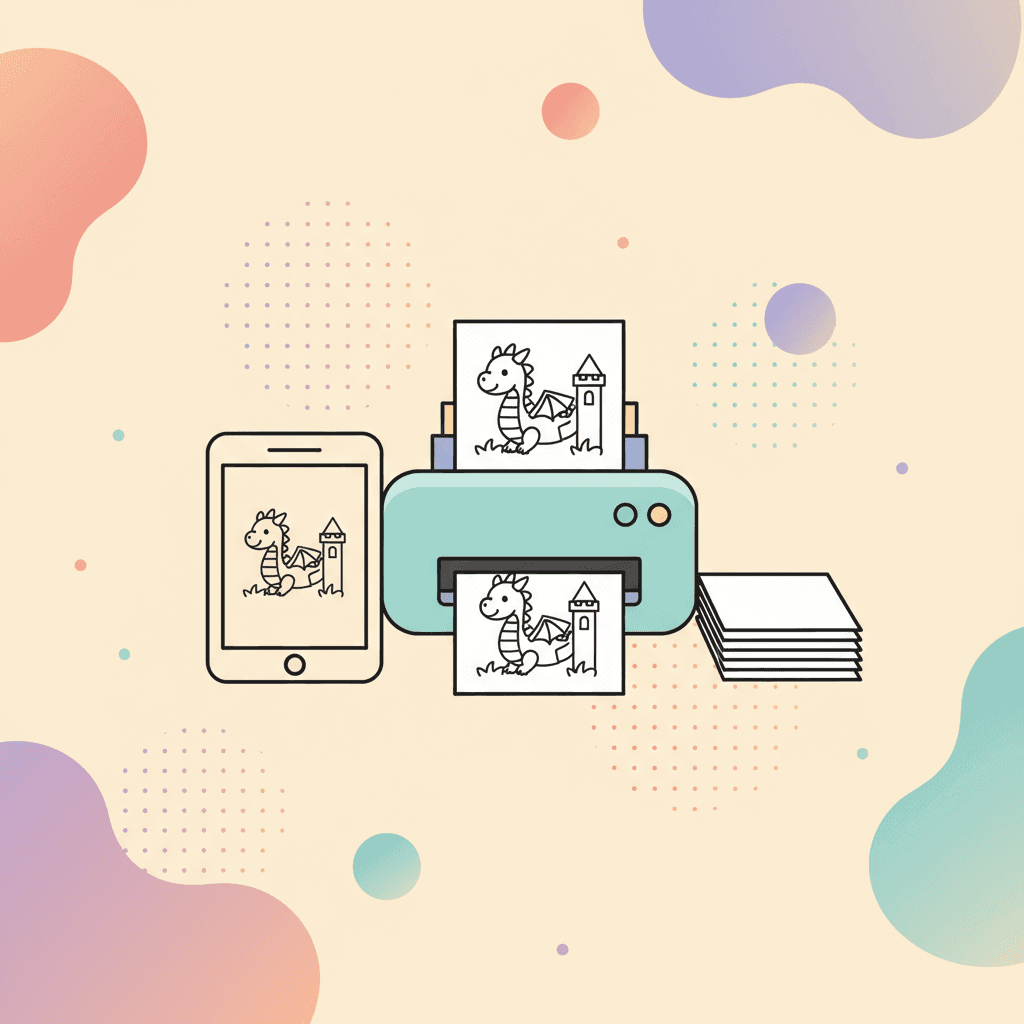
Printing coloring pages should be the easy part. But one wrong setting can turn a clean page into light, fuzzy lines or a page that is cut off at the edges.
Use this guide to print pages that look sharp, stack cleanly for kids, and waste less paper.
The quick fix checklist (before you reprint)
If a page looks wrong, check these first:
- Turn off draft mode.
- Set scale to 100% (or "Actual size") if the page is getting cropped.
- Pick "Portrait" for most pages.
- Use "Normal" quality, not "Fast."
- Use black-and-white if your printer tries to "enhance" lines with color.
If you are printing from a phone, the same ideas apply. Look for options like "Scale," "Fit to page," "Quality," and "Color."
If you want the fast path for saving and printing finished work too:
Paper choice: match the paper to the supplies
Paper choice matters more than people expect. The right paper keeps the page clean and helps kids succeed.
Use this as a quick match:
| If kids will use... | Use paper like... | Why it helps |
|---|---|---|
| Crayons | Standard copy paper | Smooth and easy to fill. |
| Colored pencils | Standard or slightly thicker paper | Holds detail without smearing. |
| Markers | Heavier paper or cardstock | Reduces bleed-through. |
| Paint markers or wet media | Cardstock | Keeps the page from warping. |
If you only have copy paper, it still works. Add a scrap sheet underneath when using markers.
The three printer settings that matter most
Most print dialogs are crowded. You can ignore most of them.
Focus on these three:
1) Quality
Choose "Normal" or "High." Avoid "Draft" because it makes lines look light and broken.
2) Scale
If the page is cut off, scale is the first setting to fix.
- Use "Actual size" or 100% if you see cropping.
- Use "Fit to page" only if the page is slightly too large for your printable area.
3) Color vs black-and-white
Coloring pages are line art. Black-and-white is often the cleanest choice.
If your printer makes lines look gray, black ink usually solves it.
Fix the two common problems: cut-off edges and tiny borders
These are the two annoying outcomes:
- The page is cropped; parts of the drawing disappear.
- The page shrinks; the borders get huge and the drawing looks small.
Use this quick guide:
| Problem | Fix |
|---|---|
| Cropped edges | Set scale to 100% or "Actual size," then try "Fit to page" if needed. |
| Page looks too small | Turn off "Fit to page" and print at 100%. |
| Borderless print fails | Turn off "Borderless" and use standard margins. |
Some printers cannot print all the way to the edge. That is normal. What matters is keeping the drawing intact and large enough to color.
Make classroom printing easier (and cheaper)
If you are printing for a class, the printing problem is not one page. It is the flow.
This setup saves time:
- Pick one theme for the week (dinosaurs, ocean, or space).
- Print a small stack (20 to 40 pages), then store it in one folder.
- Keep an "easy" stack and a "more detail" stack.
Good classroom-friendly themes:
If you want a classroom station setup that runs smoothly:
Prevent marker bleed-through without changing the whole setup
Bleed-through happens when the paper is thin and the marker is wet. You do not need to ban markers to fix it.
Try these options:
- Put a scrap sheet under each page.
- Use thicker paper for marker days.
- Save markers for bigger shapes and use crayons for small areas.
If kids are frustrated by tiny regions, page choice helps too:
When prints look light or streaky
If the page prints faint lines or broken streaks:
- Switch from draft to normal quality.
- Print a simple test page; if black lines look weak, it may be ink.
- If you can, choose "Black ink only" instead of "Auto."
If the printer itself is struggling, digital coloring can be a clean backup:
A simple printing routine you can reuse
If you want the printing process to be fast, use a repeatable routine:
- Pick one theme category.
- Print 6 to 10 pages at once.
- Store them in a folder or tray.
- Refill the stack once a week instead of printing one page at a time.
You get fewer "wait, where is the paper?" moments, and kids can start faster.
Start with a theme and print a small stack
Pick a theme your kid already likes, then print a small set so they can choose without browsing the whole internet:
If you want to mix print and digital on the same day: